Video · 9 min read
How to Use Claude Skills: Turn One Good Chat Into a Skill
A skill is a job you teach Claude once. Think of it like an SOP: after that, you just ask, and it does the job your way.
You don't write a skill from scratch. You get one chat right, then turn that chat into a skill. This is the written version of my Skills video, with the same method step by step. Recorded November 2026; menus change, so check what yours shows. The demo business, Juniper Bikes, is fictional.
Here's the whole method:
- Get the job right in one chat.
- Turn that chat into a skill with the skill maker.
- Fix the description so it fires on the words you'd actually type.
- Test it three ways in a fresh chat.
- Every time you correct it, update the skill.
What a skill is
A skill is a folder with one main file inside, and that file has three parts:
- A name.
- A description that says when to use it.
- The steps: how to do the job.
Claude reads every skill's description first. When what you ask matches one, it pulls in the whole skill. So you can have a lot of them, and they stay out of the way until their job comes up.
It's close to a prompt, but you never paste it. It's also not like your instructions, which shape every chat. A skill only shows up when its job does, in any chat on your Claude account.
Think about the jobs you explain over and over: a presentation skill that knows your brand, your colors and how your team likes things laid out, or a social post skill that knows how you write for Facebook and how you write for LinkedIn.
Where skills live
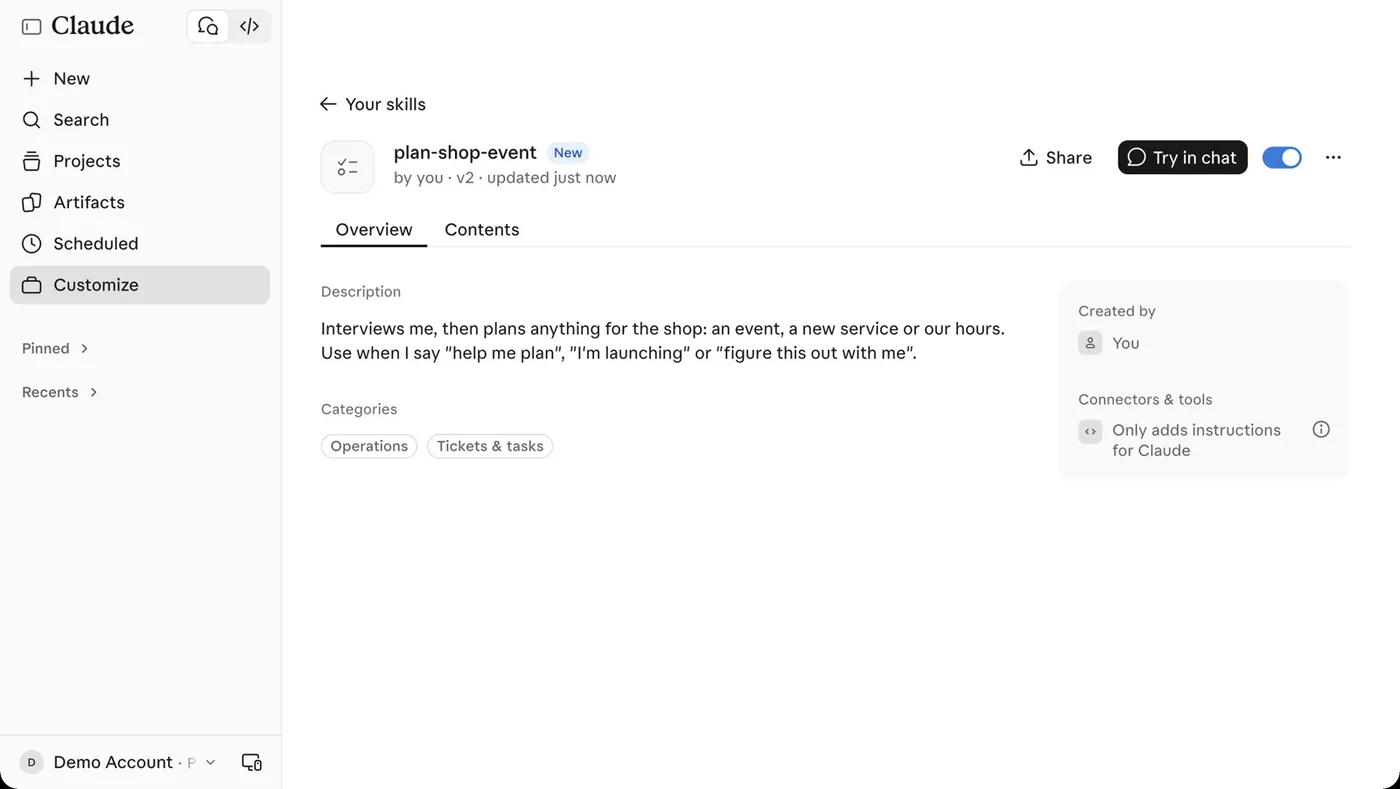
- In Claude, open Customize, then Skills.
- Each skill has its own page with a switch. Off means Claude won't use it.
- You'll already see a few from Anthropic, like skill-creator. Claude uses those on its own.
Don't see Skills at all? Open Settings, then Capabilities, and check that Create and edit files is on. The note under it says skills need it. On a work plan, your admin may control it.
Step 1: get it right in one chat
Don't start by writing a skill. Anthropic's own advice is to get one real task right first, then turn it into a skill. So do the job in a normal chat until the answer is great.
In the video I use a prompt I use all the time: interview me before you plan anything. It's free in my Prompt Vault: the Interview Trick. I pasted it into a plain chat, then added one line:
I run Juniper Bikes, a small neighborhood bike shop. Plan our spring tune-up day.
It asked one question at a time, and I answered like I'd answer a person. Ten turns in all. The good moment came on the fifth: I said we wanted 60 bikes booked, and it caught that the numbers didn't work.
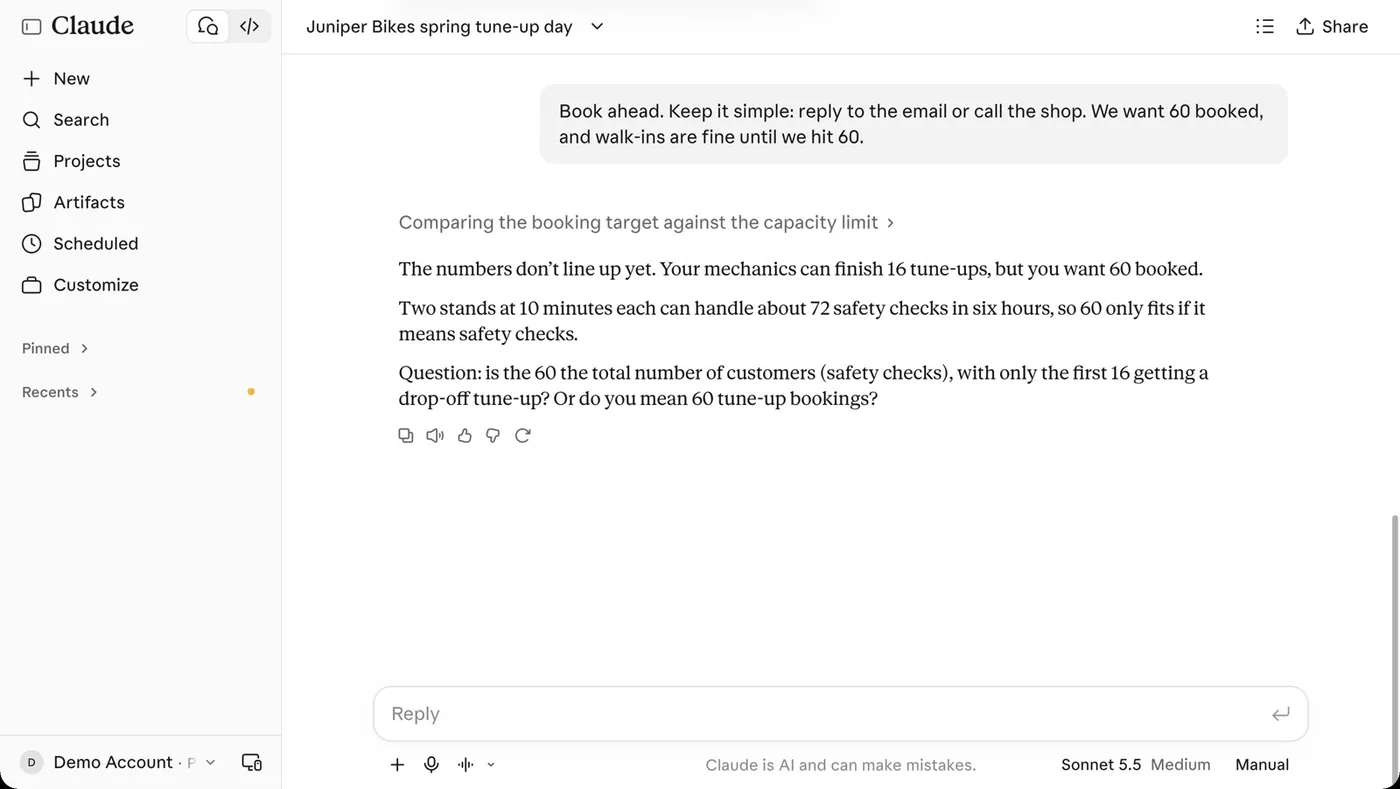
Then it told me its plan (an event plan, a customer announcement and a booking tracker) and asked whether to go ahead.
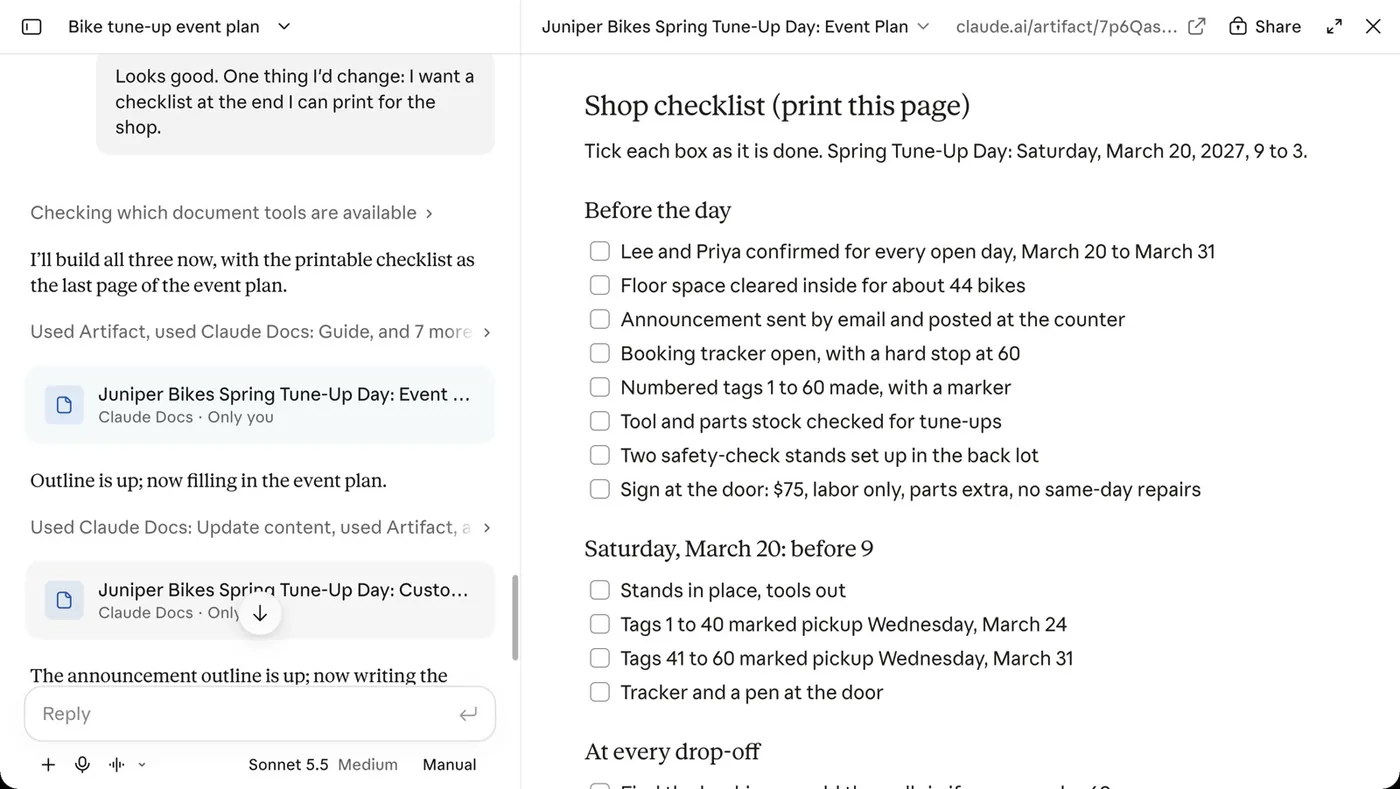
One thing I'd change. I wanted a checklist I could print for the shop, so I told it:
Looks good. One thing I'd change: I want a checklist at the end I can print for the shop.
It built all three, with "Shop checklist (print this page)" as the event plan's last section: tick boxes from before the day through the last pickup. That's a taste call, not a mistake. The chat now does the job the way I'd do it, and that chat is the recipe.
Step 2: turn the chat into a skill with the skill maker
Right there in the same chat, type:
use the skill maker on this chat
The skill maker is a skill that makes skills. It's in my Skool community (the link is at the end of this page). It reads the whole chat, asks up to three questions if the chat leaves a gap, and writes the skill with your fixes in it: the name, the description and the steps.
In the video it didn't need to ask anything ("The chat already answers all three questions") and wrote a skill called plan-shop-event:
- The steps follow the chat: interview first, one short question at a time; check the numbers as you go; say the plan before building it; then build the event plan with the printable checklist last, the customer notice and the booking tracker; and a last step called Check it.
- No case details. The names, dates and prices from that chat stay out of the skill. They go in the chat each time.
- Three test asks for step four, plus a paste version for ChatGPT or any chat without skills.
Open what it wrote and read it. Then click Save skill. Now it's under Customize, Skills, with its switch on.
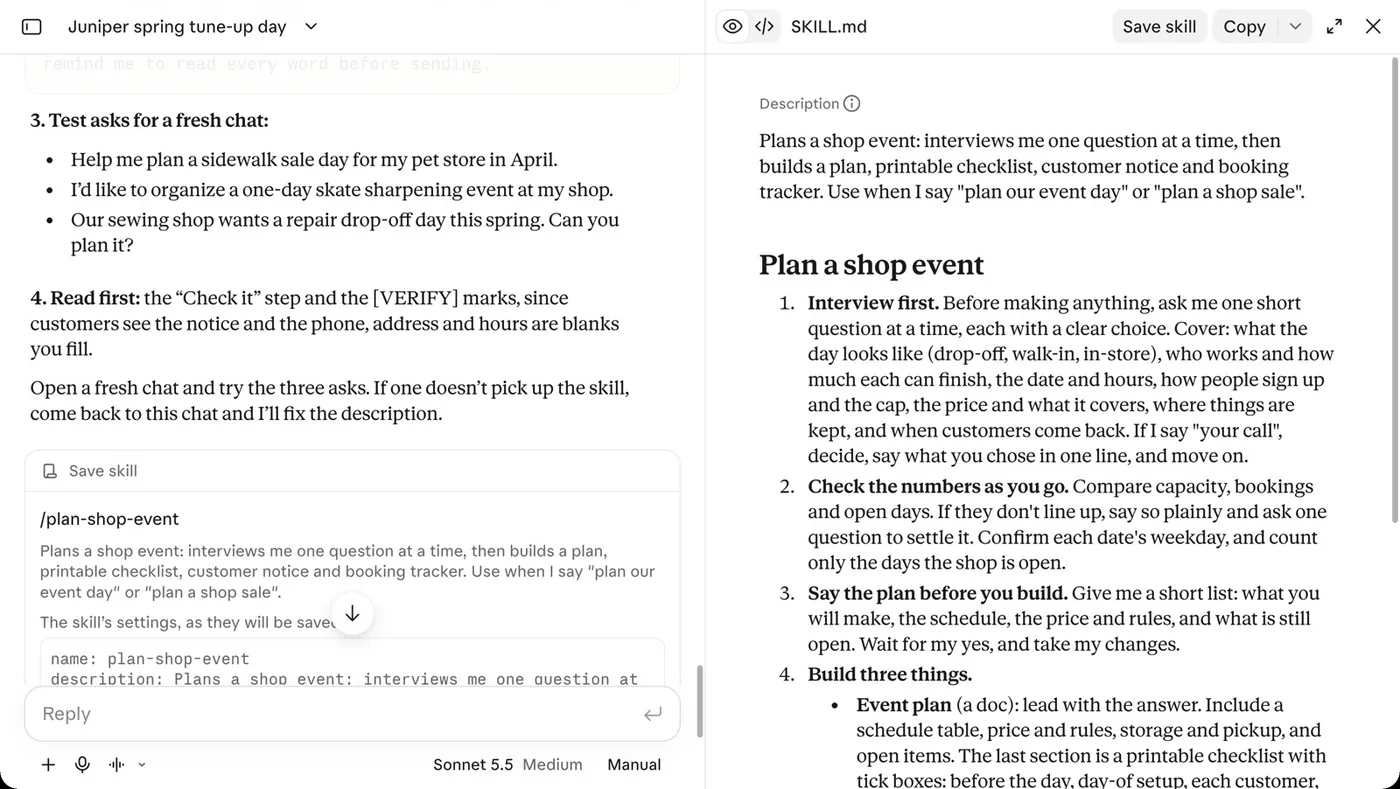
Claude has a skill creator of its own built in (Anthropic's skill-creator), and its instructions cover turning a chat into a skill too. The skill maker keeps private details out, writes the three test asks, and comes with a paste version for ChatGPT.
Step 3: fix the description so it fires on your words
The most important line in any skill is the description. That's how Claude decides when to use it. Keep it short, and say two things:
- What it does.
- When to use it, in the words you'd actually type.
The skill maker based its trigger words on that one chat. Here's the description it wrote:
Plans a shop event: interviews me one question at a time, then builds a plan, printable checklist, customer notice and booking tracker. Use when I say "plan our event day" or "plan a shop sale".
"Plan our event day" is too narrow. When I want this job, I say "help me plan", "I'm launching" or "figure this out with me". So I changed it: on the skill's page, open the ... menu and choose Edit with Claude. It opens a chat to edit the skill, and I added:
Change only the description. Say it interviews me, then plans anything for the shop: an event, a new service or our hours. Use when I say "help me plan", "I'm launching" or "figure this out with me". Keep it under 200 characters.
It shows the change on an Update skill card. Click Update on the card to open it, read it, then click Update skill in the panel to save it. Now the description reads:
Interviews me, then plans anything for the shop: an event, a new service or our hours. Use when I say "help me plan", "I'm launching" or "figure this out with me".
If it's still not right, edit it again. It's only text.
Step 4: test it three ways
Don't trust a skill until you've seen it run. Open a fresh chat beside the first one, and ask for the job three different ways, not the same words each time. The skill maker's own test asks are a fine start; I used the words I'd just put in the description:
- "Help me plan a kids' bike safety morning in May."
- "I'm launching e-bike repairs next month."
- "Thinking about opening Sundays this summer. Figure this out with me."
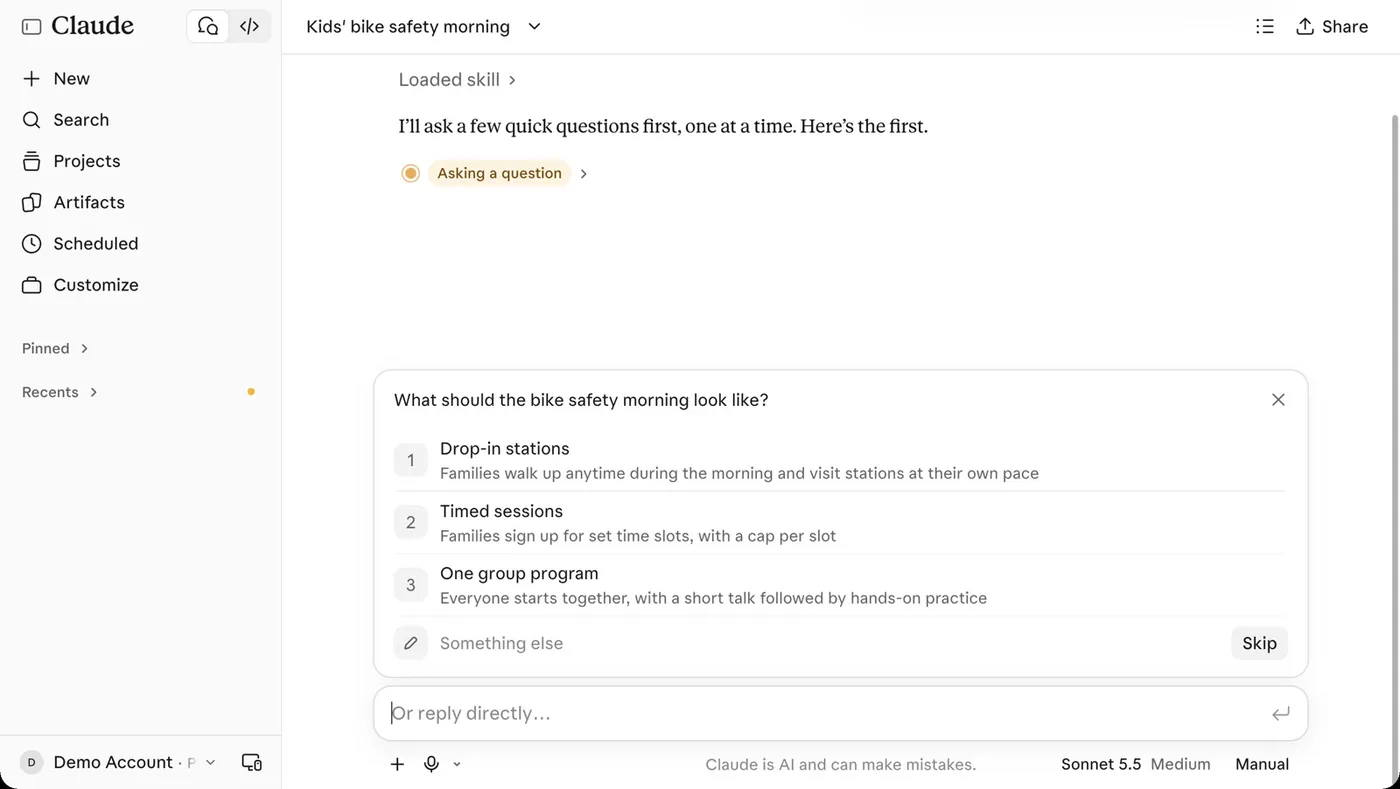
Watch it load. When Claude picks up a skill, it shows Loaded skill. The first and third asks loaded plan-shop-event.
The second one missed, both times I tried it: no skill loaded, and Claude asked which business the e-bike repairs were for. My demo account's saved preferences describe a different business, and they most likely pulled that ask away from the shop. They crept into the third ask too: it loaded the skill, then asked about Sundays at that other business.
That's what testing is for. If one misses on its wording, take it back to the first chat; it fixes the description, and you test again. If what Claude already knows about you describes a different business, say which business in the ask. And if you ever want the skill right now, just name it.
Step 5: correct it once, then update the skill
Here's the best part. Every time you correct it, the skill can get better for good. It doesn't change on its own: you tell it, you read the change and you save it.
Say it asks one question at a time, and I'd rather see them all at once with its best guesses. In a fresh chat I asked for the bike safety morning again. It loaded the skill and asked its first question, so I typed:
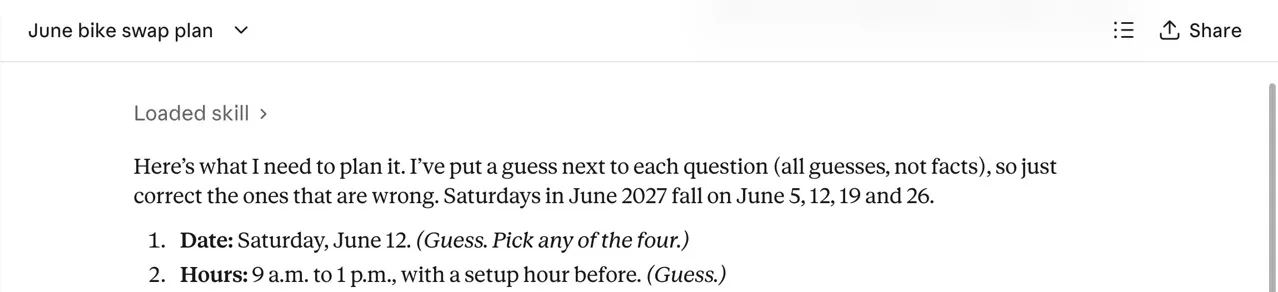
Ask me all your questions at once, numbered, with your best guess on each, so I can just correct them. Then update the skill so it always does this.
It asked everything at once, edited the skill and showed an Update skill card. Click Update on the card to open it, read what changed, then click Update skill in the panel to save it. In the next fresh chat that loaded the skill ("Help me plan a Saturday bike swap in June."), it asked every question at once, numbered, each with a guess, without being told. You stop fixing the same thing twice.
Stack them, share them
You can use more than one skill in the same chat. In the video I hand Claude Juniper's made-up spring numbers. A data skill pulls them together and catches the problems (a ticket counted twice, missing prices and a monthly total that doesn't add up), then the shop's presentation skill turns the findings into a seven-slide deck in Juniper's colors.
A skill is just a file, so you can share it. Send the zip to your team, and each person adds it in Claude under Customize, Skills, Add skill, Upload skill. Your marketing lead sets the brand once, and now someone who's never designed anything makes slides that look like yours.
Start with one. Add the next when a job keeps coming up, and keep making them better.
Before you turn one on
- Read a skill before you turn it on. Even mine.
- Install only from people you trust. You'll find skills online, and people share them all the time. A skill is instructions Claude will follow. That's Anthropic's advice too.
Get the skill maker
The skill maker is in my Skool community. It works in Claude, with a paste version for ChatGPT or any chat. And my interview prompt is free: the Interview Trick.
New to Claude? Start with How to Use Claude. To keep your files and instructions in one place, see How to Use Claude Projects.
Sources: Anthropic's "Create custom skills" docs (the description is the part Claude reads before deciding to load a skill) and the Claude Help Center's skills pages, checked November 2026.
If you want to keep learning, join my community. That's where you'll find the skill maker, all my downloads and, more importantly, me.
Keep going